SupplyKit guide
How SupplyKit works
SupplyKit runs one loop inside your Shopify admin: it tells you what is running low, you order it from the supplier, and when the delivery arrives you receive it into Shopify. Set it up once and the loop repeats.
Also on this page: Stocky import, barcode scanning, landed cost and reports · What each plan includes · Getting help. Prefer video? Watch the walkthrough video.
1Add your suppliers
SupplyKit only suggests orders for products that are linked to a supplier, so this is the first thing to set up. Open Suppliers in the app. There are three ways to add them:
- Create suppliers from vendors. One click creates a supplier for each product vendor in your store and links that vendor's products to it, starting with the vendors that sell the most.
- Import a Stocky export or price list. Upload a CSV and SupplyKit creates the suppliers it names and links each product by SKU or barcode. See the Stocky import.
- Add one by hand. Enter the supplier's name, the email purchase orders should go to, their currency and lead time.
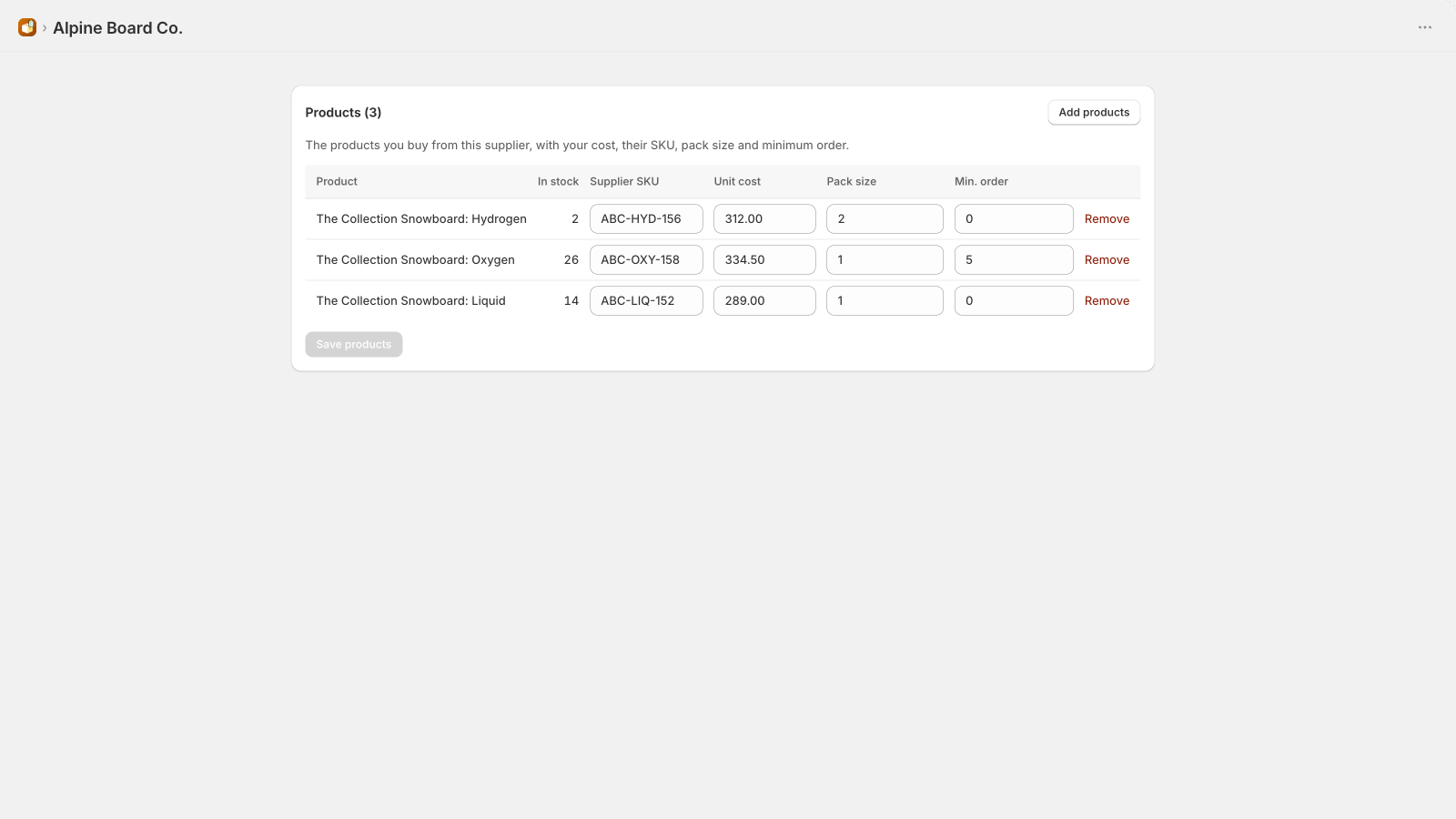
Then open a supplier and fill in the details SupplyKit uses for its suggestions:
- Lead time: the days from ordering to the stock arriving.
- Order enough for (optional): how many days of sales each order should cover. Leave it empty to use your default from Settings.
- Products: add the products you buy from them, with your unit cost, their supplier SKU, the pack size they sell in, and any minimum order. Suggestions are rounded up to whole packs and to the minimum.
2Check what to reorder
Open Reorder. It lists every item that will run out before a new delivery could arrive, grouped by supplier, with the numbers behind each suggestion on the row:
- In stock and Incoming: what you have now, and what is already on order (including your own draft purchase orders), which counts as covered.
- Sold: units sold over your sales window, the last 30 or 56 days.
- Days left: how long the stock lasts at that pace.
- Order qty: the suggestion. You can change it before ordering.
An item shows up when its stock won't last the supplier's lead time plus your safety stock. The suggested quantity covers your chosen number of days of sales once the delivery arrives, minus what you already have and what is on its way.
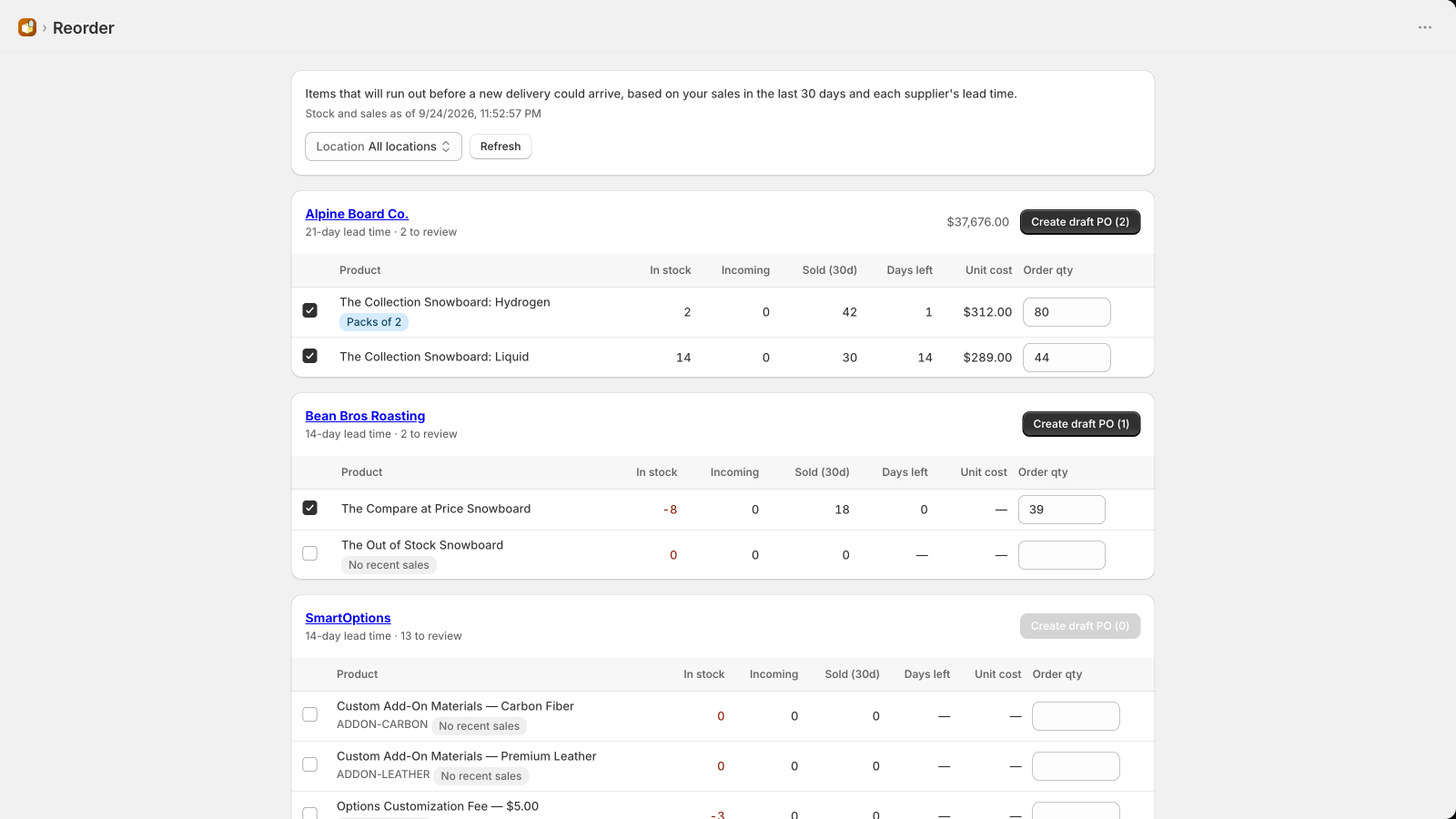
Tick the items you want and click Create draft PO on that supplier's group.
3Send the purchase order
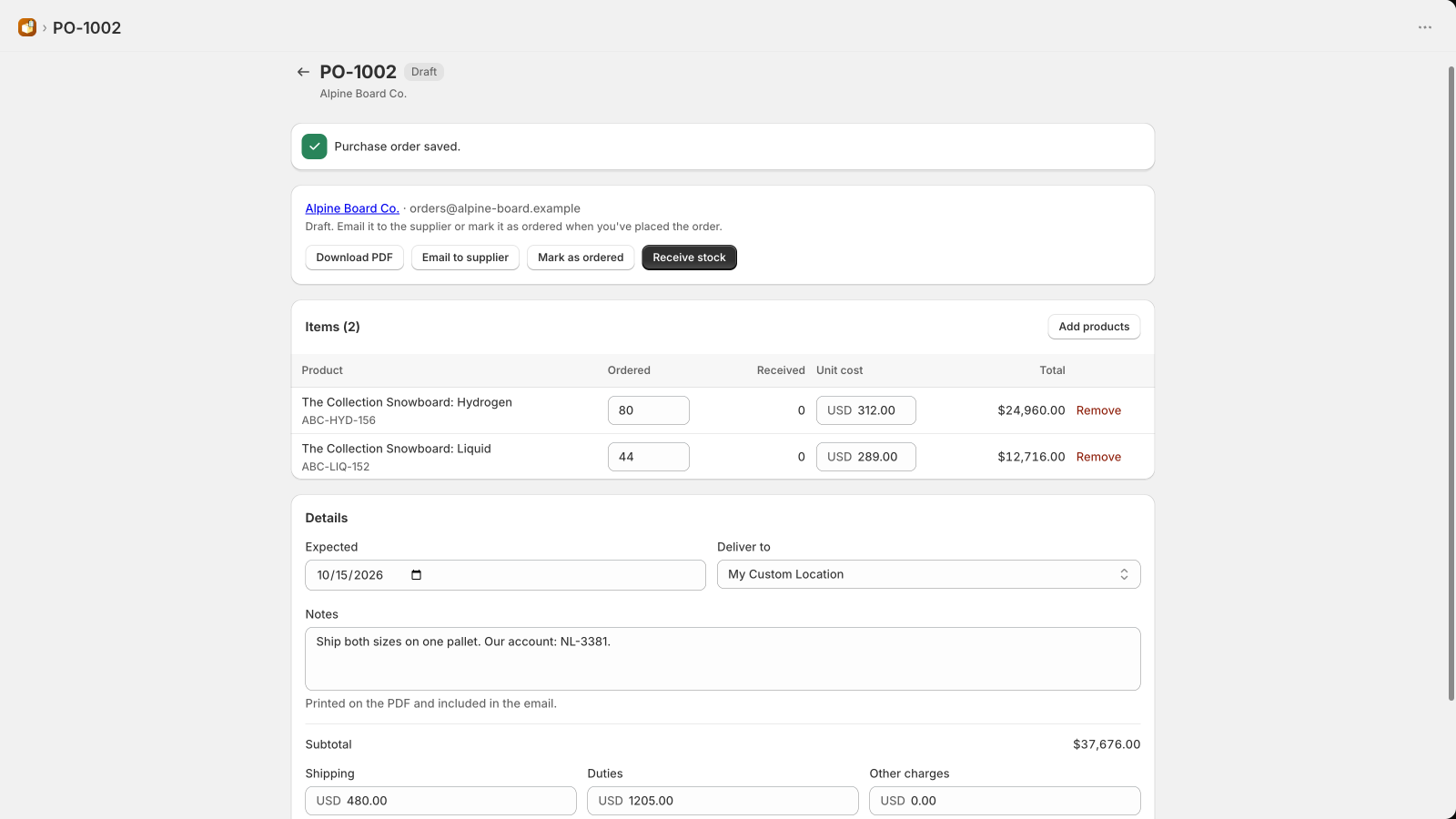
Every purchase order starts as a Draft. You create it from the Reorder page, or by hand from Purchase orders. On the draft you can change quantities and costs, add or remove products, and set the expected date and a note for the supplier. On Pro you can also choose which location it should be delivered to.
When it's ready, send it:
- Download PDF: a printable purchase order with your logo, deliver-to address and terms, set once in Settings. Send it however you usually do.
- Email to supplier (Micro and Pro): SupplyKit emails the order to the supplier's address, and their replies come straight to you.
- Mark as ordered: if you placed the order by phone or in the supplier's portal.
Purchase order statuses
| Status | What it means |
|---|---|
| Draft | Being prepared. Still counts as incoming on the Reorder page, so you won't be told to order it twice. |
| Ordered | Sent to the supplier (emailed, or marked as ordered). |
| Partly received | Some of it has arrived and been added to stock. |
| Received | Everything has arrived. |
| Closed | Partly received and the rest isn't coming. Close it with Close — the rest isn't coming so the missing items stop counting as incoming. |
| Cancelled | Called off. |
4Receive the delivery
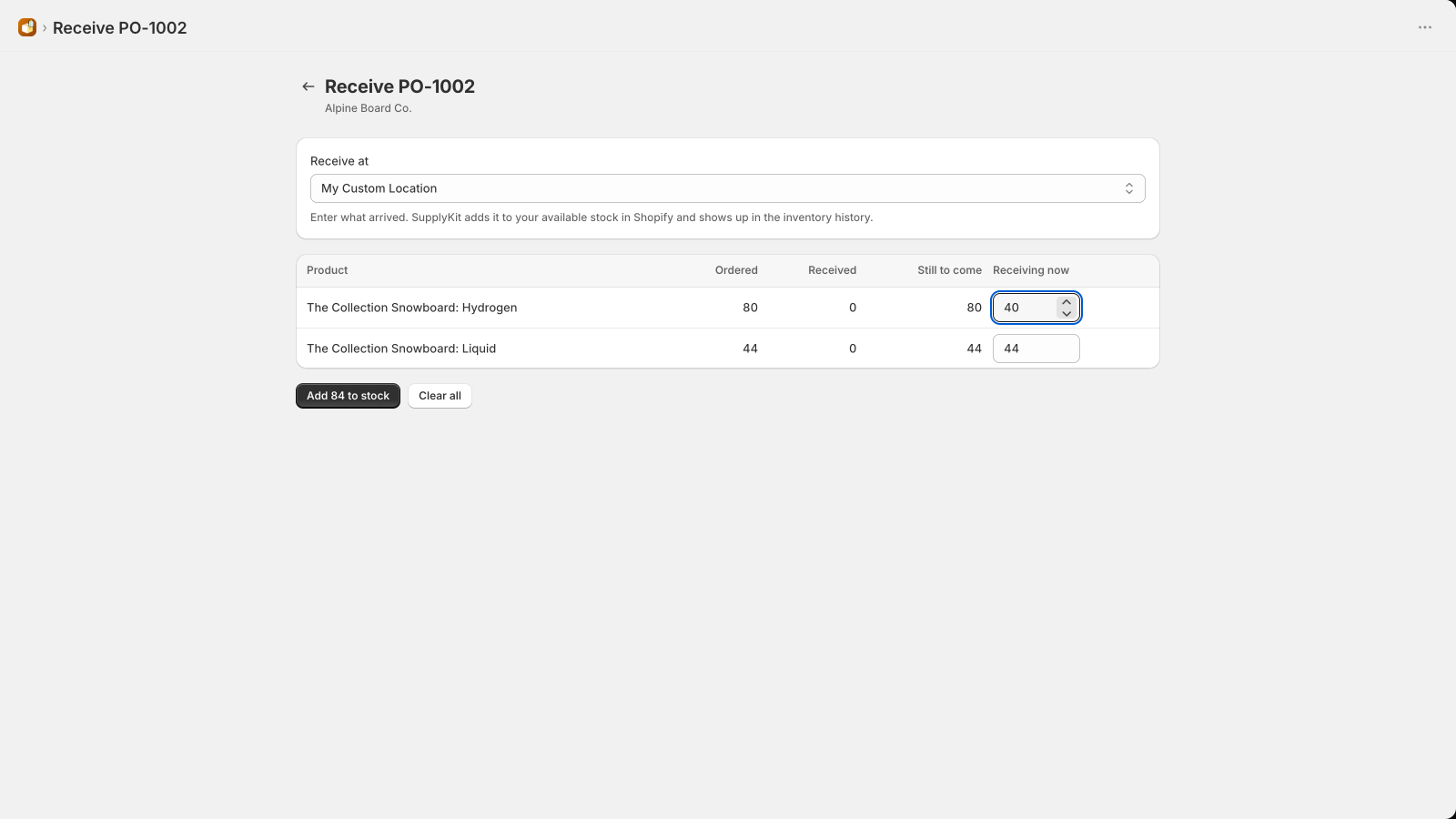
When the boxes arrive, open the purchase order and click Receive stock.
- Check where it will be added. Stock goes to the location set in Settings under Receive stock at. On Pro you can pick a different one for each delivery in Receive at.
- Enter what came in for each item, or scan the items with a barcode scanner. You can receive all of it or just part of it.
- Click Add … to stock.
SupplyKit adds those quantities to your available stock in Shopify at that location, with the purchase order named in Shopify's inventory history. If only part of the order came, it stays Partly received and you receive the rest when it arrives. A retry after a network problem never adds the same stock twice.
+Extras
Import from Stocky (or any price list)
On Suppliers, upload a purchase order CSV you exported from Stocky, or any supplier price list. SupplyKit creates the suppliers it names (up to your plan's supplier limit) and links each product, matched by SKU or barcode, with its supplier SKU and cost. Open purchase orders aren't imported, so you start with a clean list.
Scan deliveries with a barcode scanner
On the receive screen, each scan adds one unit to its line, and SupplyKit warns you when something isn't on the order or more arrived than expected. Any USB or Bluetooth scanner that types into a text field works, and you can always type a barcode or SKU instead.
Your logo, ship-to and terms on every PO
In Settings, add your logo, a deliver-to address, and your payment and delivery terms. They print on every PDF, and the terms go out with every emailed order.
Weekly "needs ordering" email (Micro and Pro)
Every Monday morning you get a short email of what needs ordering, grouped by supplier, with a link to the Reorder page. It goes to your store's contact email, and nothing is sent when nothing is due. You can turn it off in Settings.
Landed cost (Pro)
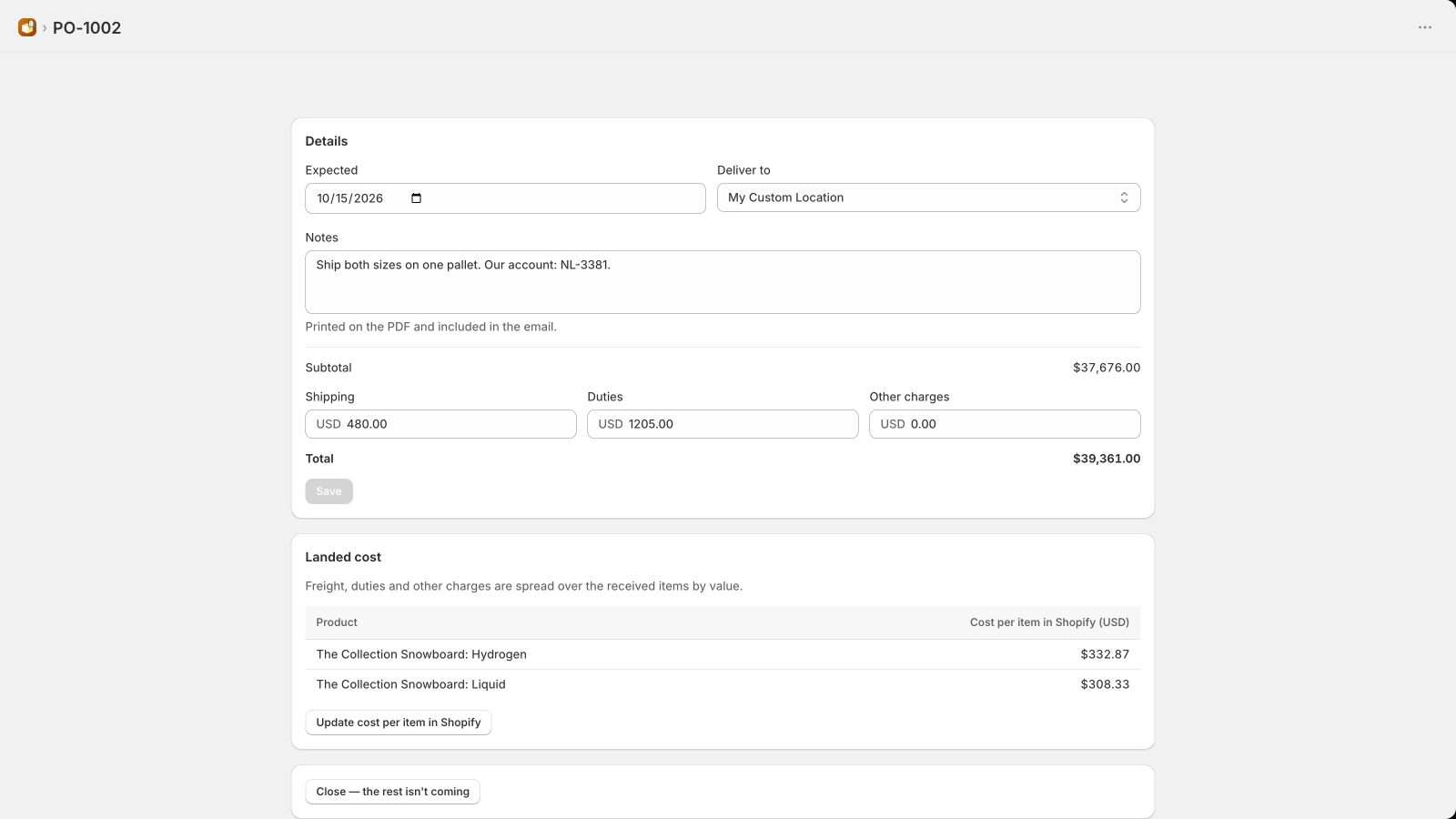
Add shipping, duties and other charges to a purchase order. SupplyKit spreads them over the items by value, shows the true landed cost of each unit, and can update Shopify's cost per item so your margins reflect what the stock really cost.
Reports, CSV export and locations (Pro)
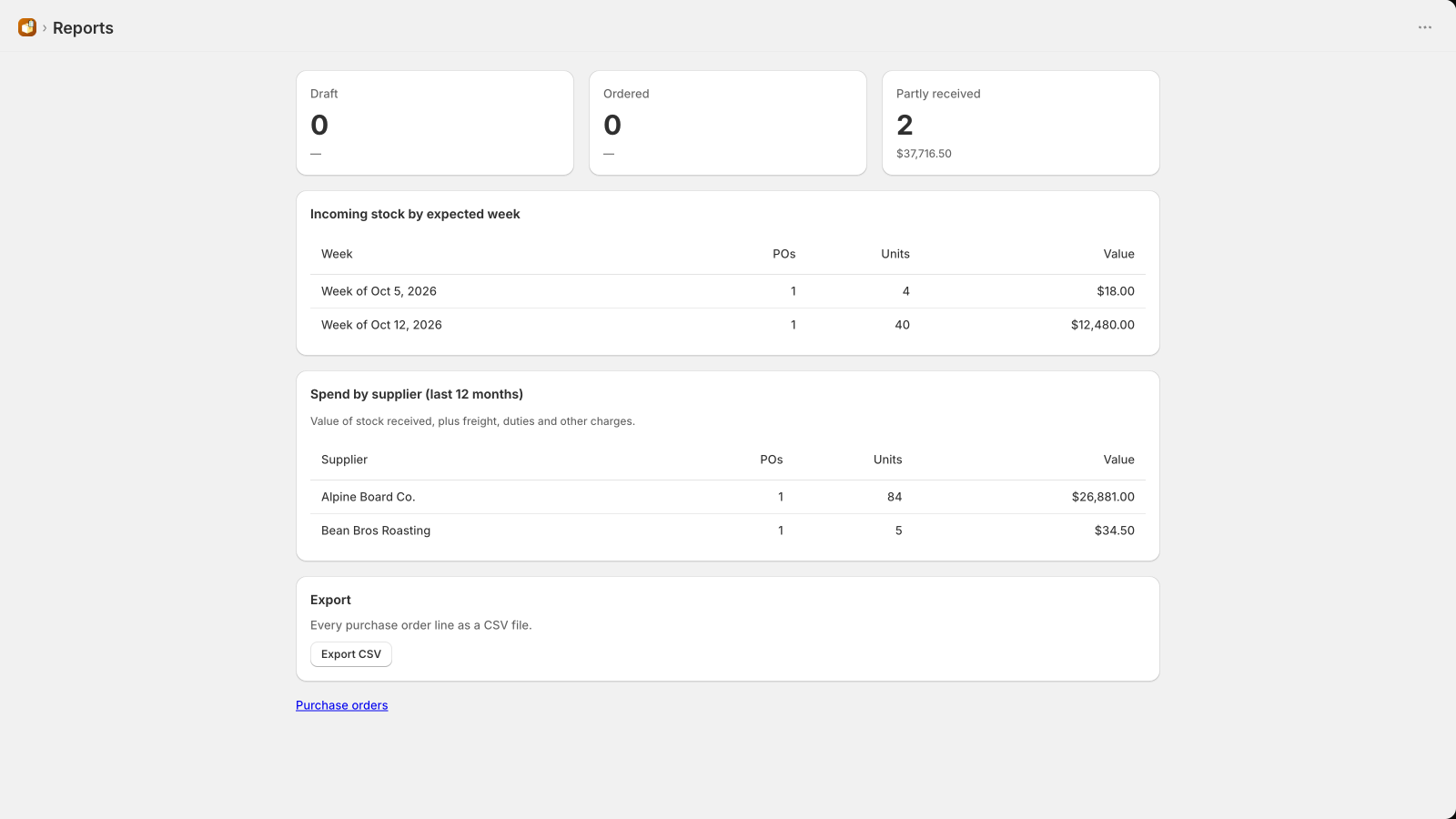
Reports shows incoming stock by expected week and spend by supplier, and exports every purchase order line as CSV. Pro also lets you choose the delivery location for each purchase order and receive stock at any of your locations. Other plans receive at the one location set in Settings.
In your language
The app follows the language of your Shopify admin.
What each plan includes
Every plan includes reorder suggestions, PO PDFs with your logo and terms, barcode receiving into stock, and the Stocky import.
| Free | Micro | Pro | |
|---|---|---|---|
| Suppliers | 3 | Unlimited | Unlimited |
| Open purchase orders | 5 | 25 | Unlimited |
| Email POs to suppliers | — | ✓ | ✓ |
| Weekly "needs ordering" email | — | ✓ | ✓ |
| Receive at any location | — | — | ✓ |
| Landed cost and cost-per-item updates | — | — | ✓ |
| Reports and CSV export | — | — | ✓ |
An "open" purchase order is one that isn't finished yet (Draft, Ordered or Partly received). Receive, close or cancel one to free up a slot. Prices are on the pricing section of the home page.
Still stuck? We'll set it up for you, free.
Open Messages inside SupplyKit and ask anything. A real person from the team that builds the app reads every message, and we reply in the app and by email, usually within a few hours. Click Set it up for me and we'll configure SupplyKit in your store at no cost, including the Stocky import.
Prefer email? Write to support@nerdlabs.us. More answers are in the FAQ.